
Docker Compose with WSL2
Trimester 3 2022
How to Enable Windows Subsystem for Linux
If you’re facing problems installing Linux bash shell on Windows 10, one of the issues might be you’ve not enabled Windows Subsystem for Linux. If that’s the case, you’ll bump into an error: “The Windows Subsystem for Linux optional component is not enabled. Please enable it and try again.”
Here’s how to enable Windows Subsystem for Linux component in Windows 10:
- Open Windows 10 Settings app.
- Select Apps.
- Click Programs and Features under the Related settings section on the right.
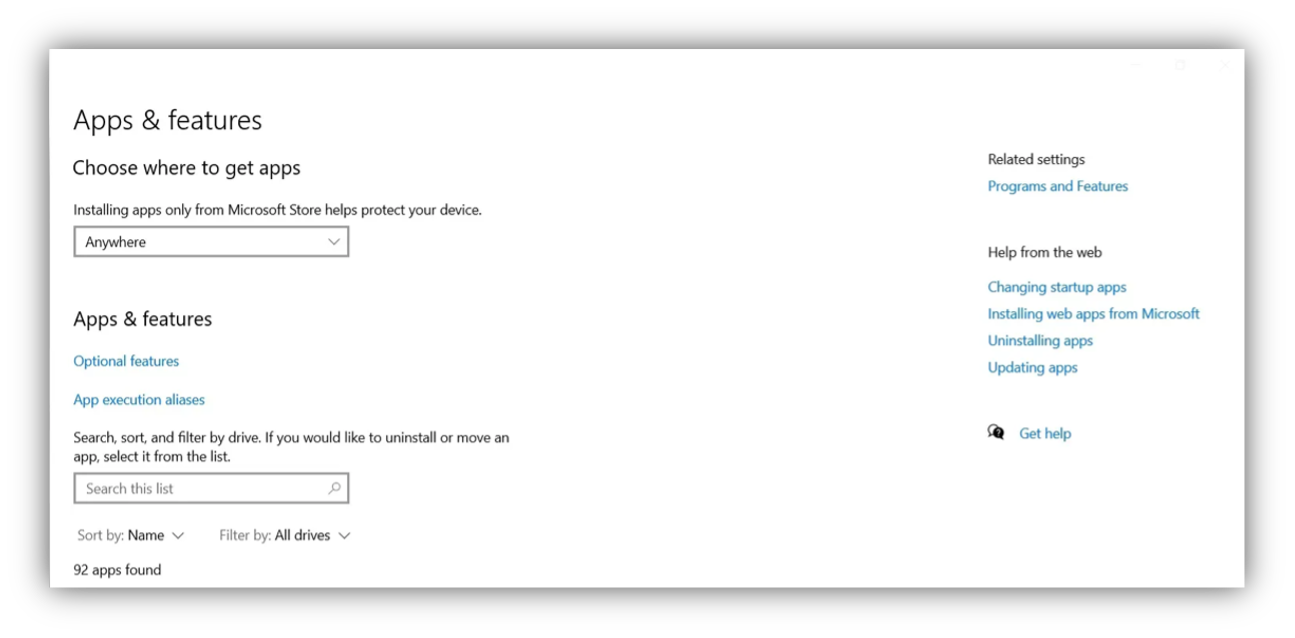
- Under the Programs and Features page, click Turn Windows features on or off on the left panel.
- Scroll down and enable Windows Subsystem for Linux.
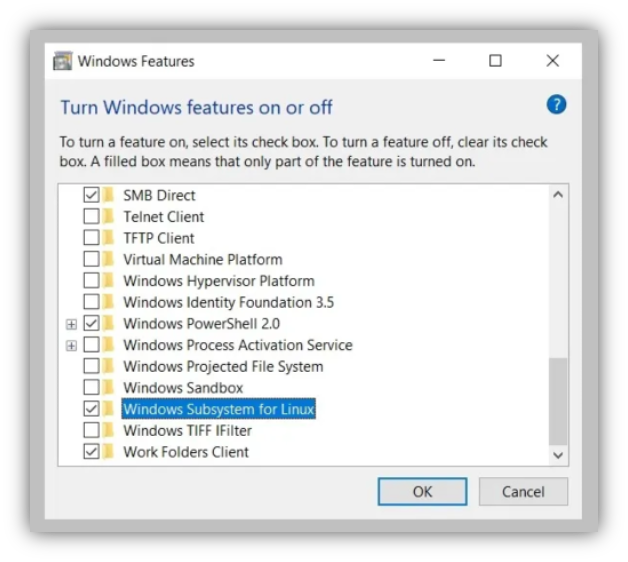
- Click OK to save your changes.
- Hit Restart now to finish the process.
Install Ubuntu in WSL
wsl --install -d ubuntuUpgrade version from WSL 1 to WSL 2
To see whether your Linux distribution is set to WSL 1 or WSL 2, use the command:
wsl -l -vTo change versions, use the command:
wsl --set-version <distro name> 2Once installed, you can either launch the application directly from the store or search for Ubuntu in your Windows search bar.
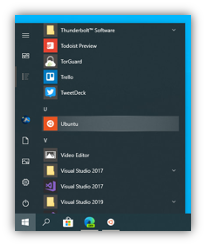
Once Ubuntu has finished its initial setup you will need to create a username and password (this does not need to match your Windows user credentials).
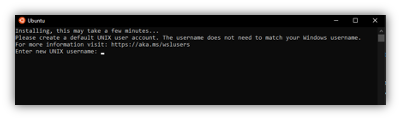
Finally, it’s always good practice to install the latest updates with the following commands, entering your password when prompted.
sudo apt updatesudo apt upgradesudo apt-get install net-tools (windows/linux installation)Enable Docker Support for WSL2
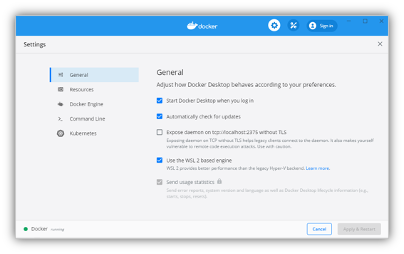
- From the Docker menu, select Settings > General.
- Select the Use WSL 2 based engine check box. If you have installed Docker Desktop on a system that supports WSL 2, this option will be enabled by default.
- Click Apply & Restart.
Converting WSL 1 Operating Systems to WSL 2 on Windows
If you are using WSL1 You will need Windows 10 build 18917 or higher to be able to use WSL 2. Please note, you will need to have the Powershell
Administrator window up. If you are converting WSL 1 to WSL 2 I’d assume you have Linux Subsystem for Windows installed. If not, the following command will install it for you.
Enable-WindowsOptionalFeature -Online -FeatureName Microsoft-Windows-Subsystem-LinuxOnce you do that you will need to run:
Enable-WindowsOptionalFeature -Online -FeatureName VirtualMachinePlatformNow you should be able to run, substitute “Distro” with your specific distribution. You can get a list by using the command:
wsl --list --verbosewsl --set-version <Distro> 2For setting all future distributions to use WSL 2, you will need to use the following command:
wsl --set-default-version 2Now the last step is to verify your changes worked:
wsl --list --verboseThen you can now follow the standard step for the git clone and docker compose. For development in the project, run:
code .